How to add a domain name in DirectAdmin?
Drucken- 0
Step 1: Log in to DirectAdmin
-
Open your web browser and navigate to your DirectAdmin login page or log in through the client area.
-
Enter your DirectAdmin username and password to log in to the control panel. In case you are logging using clientarea, you don't need to enter the username & password.
We also allow one-click login through the Client Area
Step 2: Navigate to Domain Setup
Once logged in, navigate to the Account Manager section and click on Domain Setup
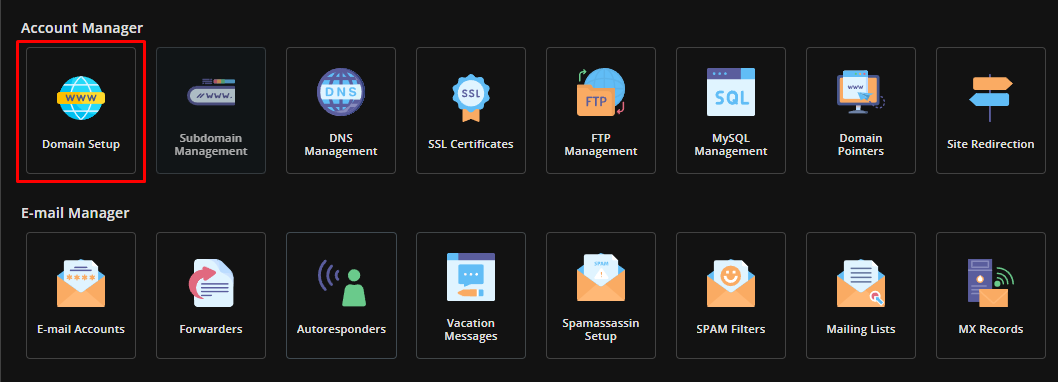
Step 3: Add the domain
-
Click on the
Add Domainbutton. -
In the
Domainfield, enter the new domain you would like to add. -
In the
Bandwidthfield, enter the amount of bandwidth you would like allocated to the new domain on a monthly basis. We recommend simply ticking theSame As Main Accountcheckbox. -
In the
Disk Usagefield, enter the amount of storage you would like allocated to the new domain on a monthly basis. We recommend simply ticking theSame As Main Accountcheckbox.
We would recommend also ticking the Secure SSL and PHP Access options as well. Simply click on Create once you have filled out the fields.
Step 4: Configure your domains DNS/Nameservers & SSL
-
After adding the new domain, you need to change your domain's nameservers to point to the nameservers of your hosting account. These details were sent to you via email when the hosting account was first created.
-
Once the domain's DNS has propagated, you can also issue an SSL certificate for the newly added domain. Heres how to issue an SSL in DirectAdmin